
How to host a competition on luckladder
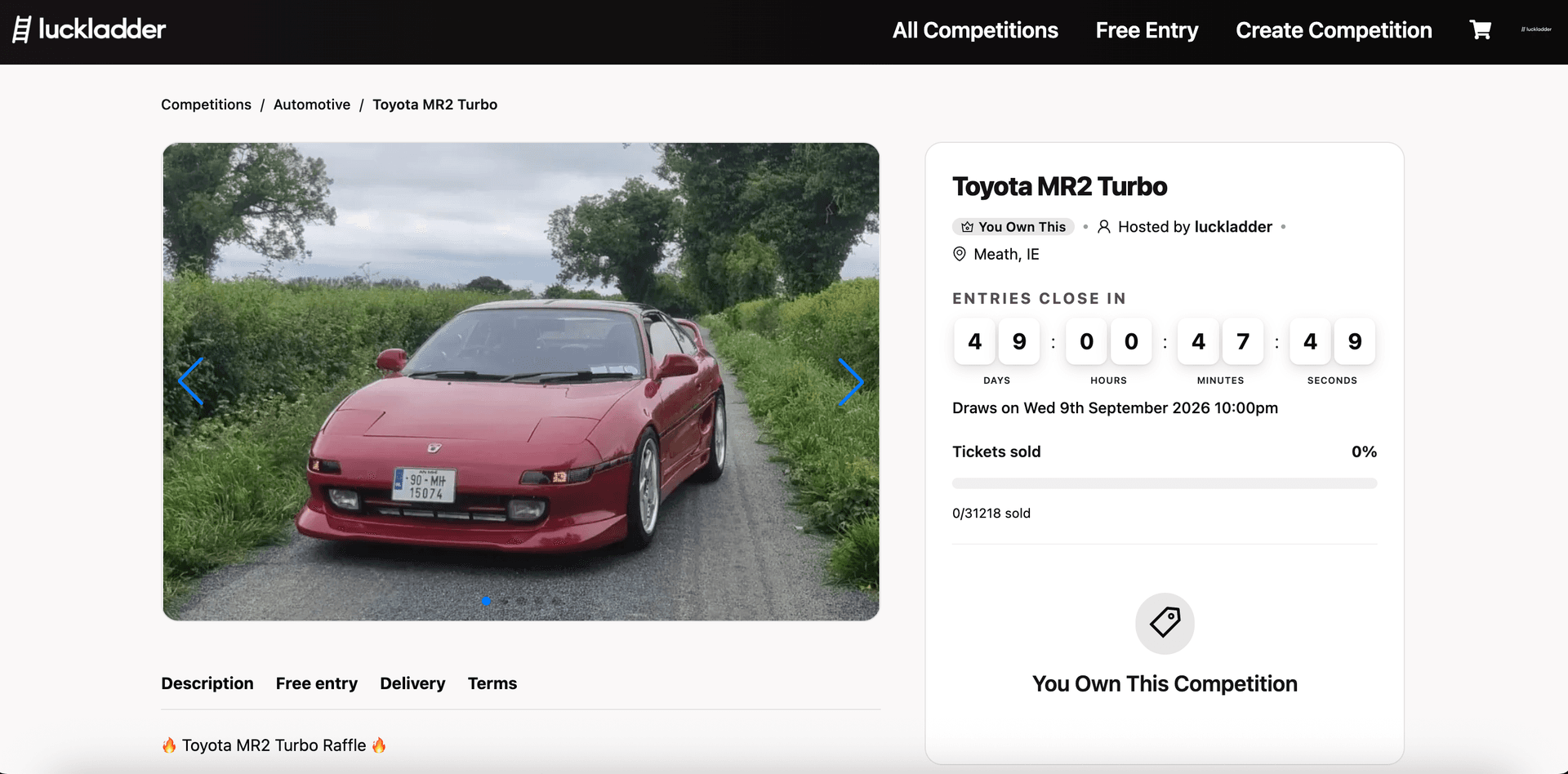
This guide walks through listing a competition on luckladder — title, photos, pricing, draw date, and publish. Example: a Toyota MR2 Turbo raffle.
Contents
Summary
- Prepare up to 10 prize photos and your max payout.
- Fill in the create form: basics, description, settings, and pricing.
- Review once — details cannot be changed after publish.
- Share the live link and wait for the automated draw.
Before you start
- Sign in to luckladder (hosts need an account).
- Have clear photos of the prize ready. You can add up to 10.
- Know your max payout (what you want if every ticket sells) and when you want the draw to run.
1. Start hosting
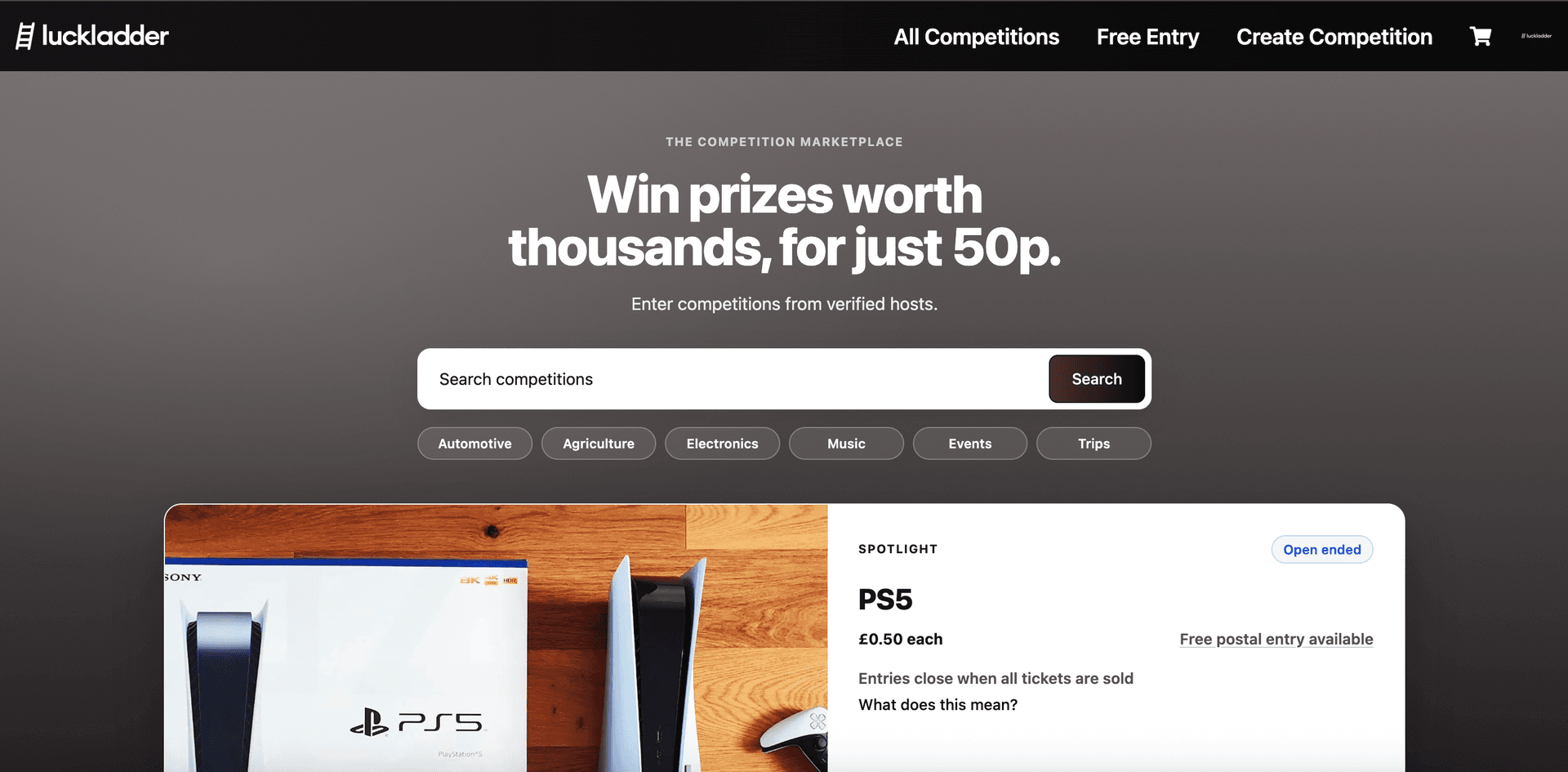
From anywhere on the site, click Create Competition in the top right. That opens the host setup flow.
2. Add a title and photos
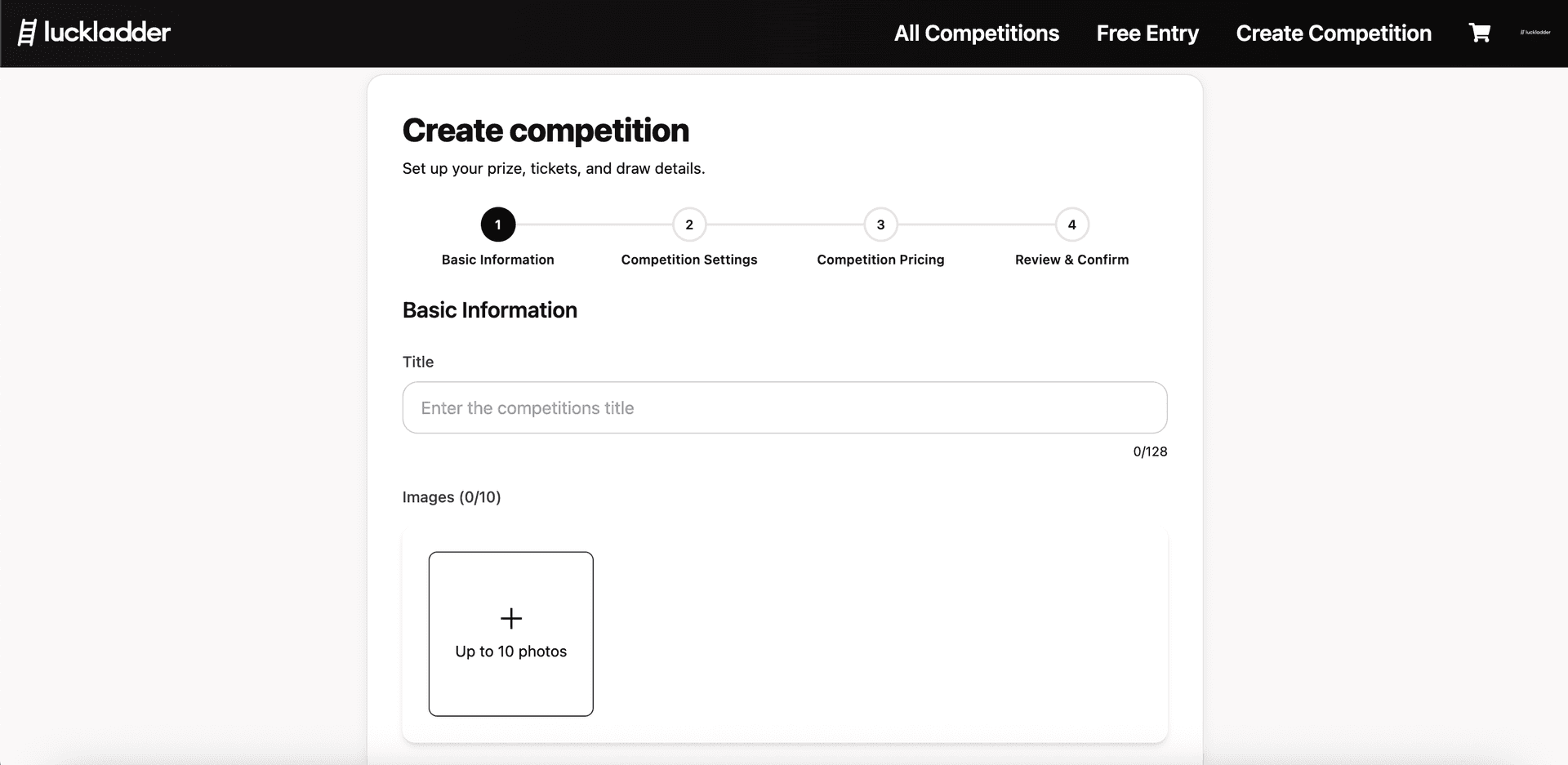
Step 1 of the form is Basic Information. Give the competition a clear title and upload photos. Good images attract entrants. Be sure to use high quality photos and show the prize from a few angles.
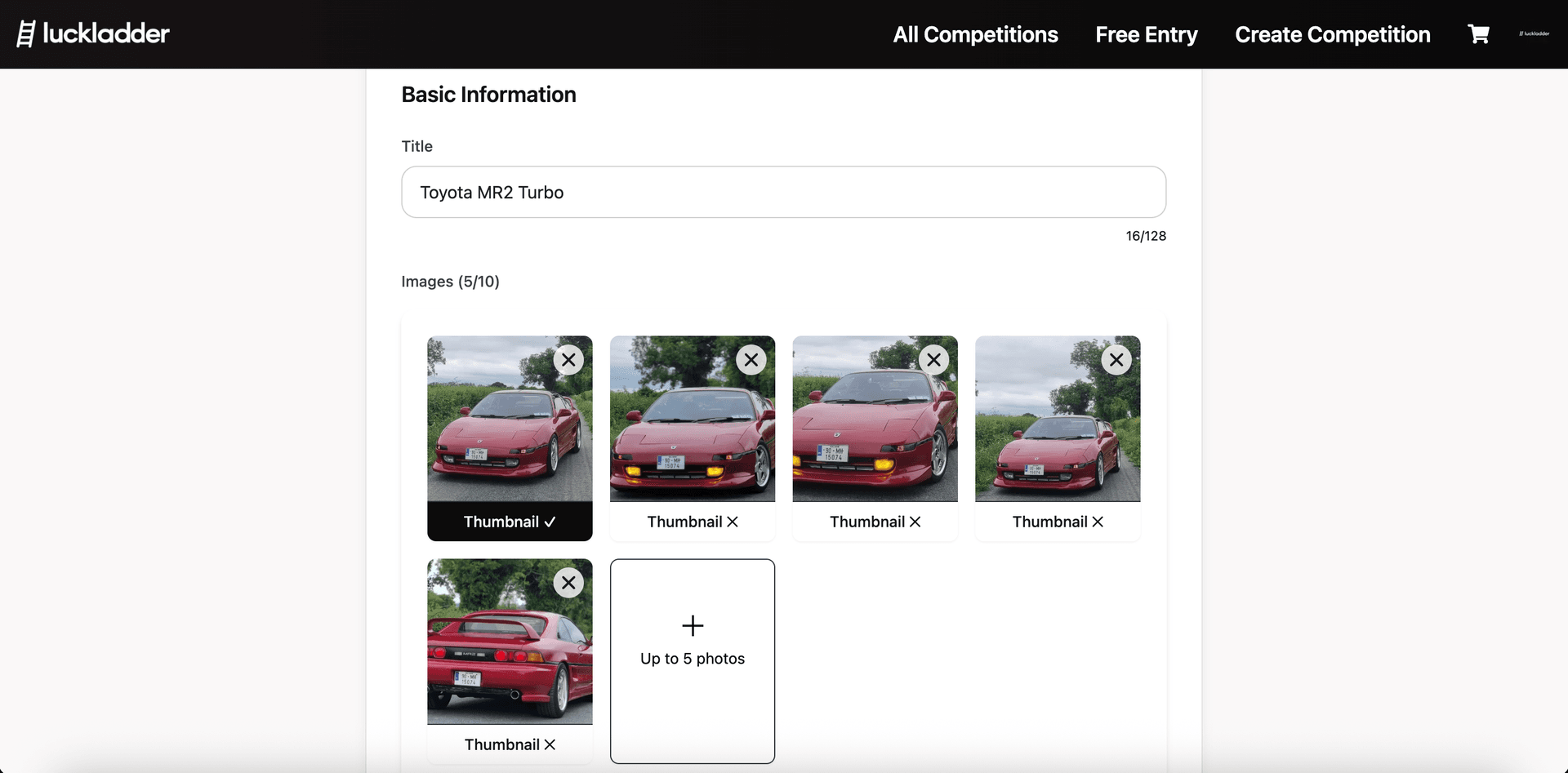
Once photos are in, pick a thumbnail. This is the image that will be shown in search, spotlight, and share previews, so choose the shot that best sells the prize at a glance.
3. Write the description
You will write the description in the description text box on the form. Try and be detailed and specific in your description. This will help entrants understand why they should buy a ticket. When you are happy with your description, click Continue to move on to the next step.
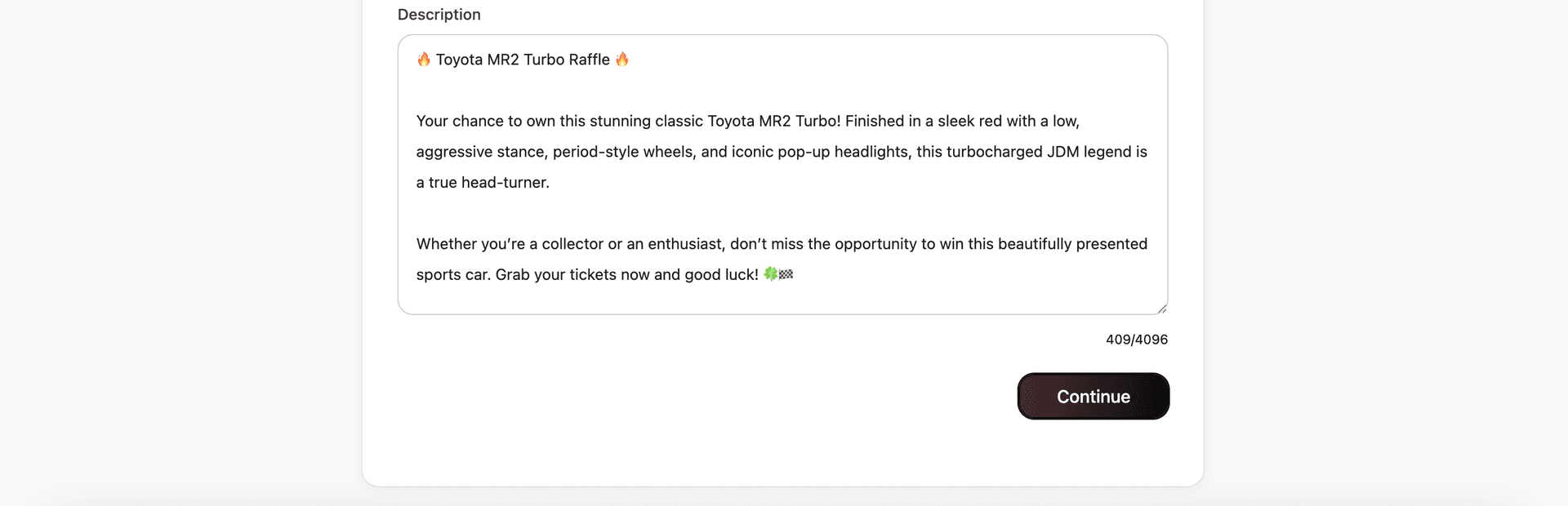
For our example, we will use the following description for the Toyota MR2 Turbo raffle:
🔥 Toyota MR2 Turbo Raffle 🔥

Your chance to own this stunning classic Toyota MR2 Turbo! Finished in a sleek red with a low, aggressive stance, period-style wheels, and iconic pop-up headlights, this turbocharged JDM legend is a true head-turner.

Whether you're a collector or an enthusiast, don't miss the opportunity to win this beautifully presented sports car. Grab your tickets now and good luck! 🍀🏁
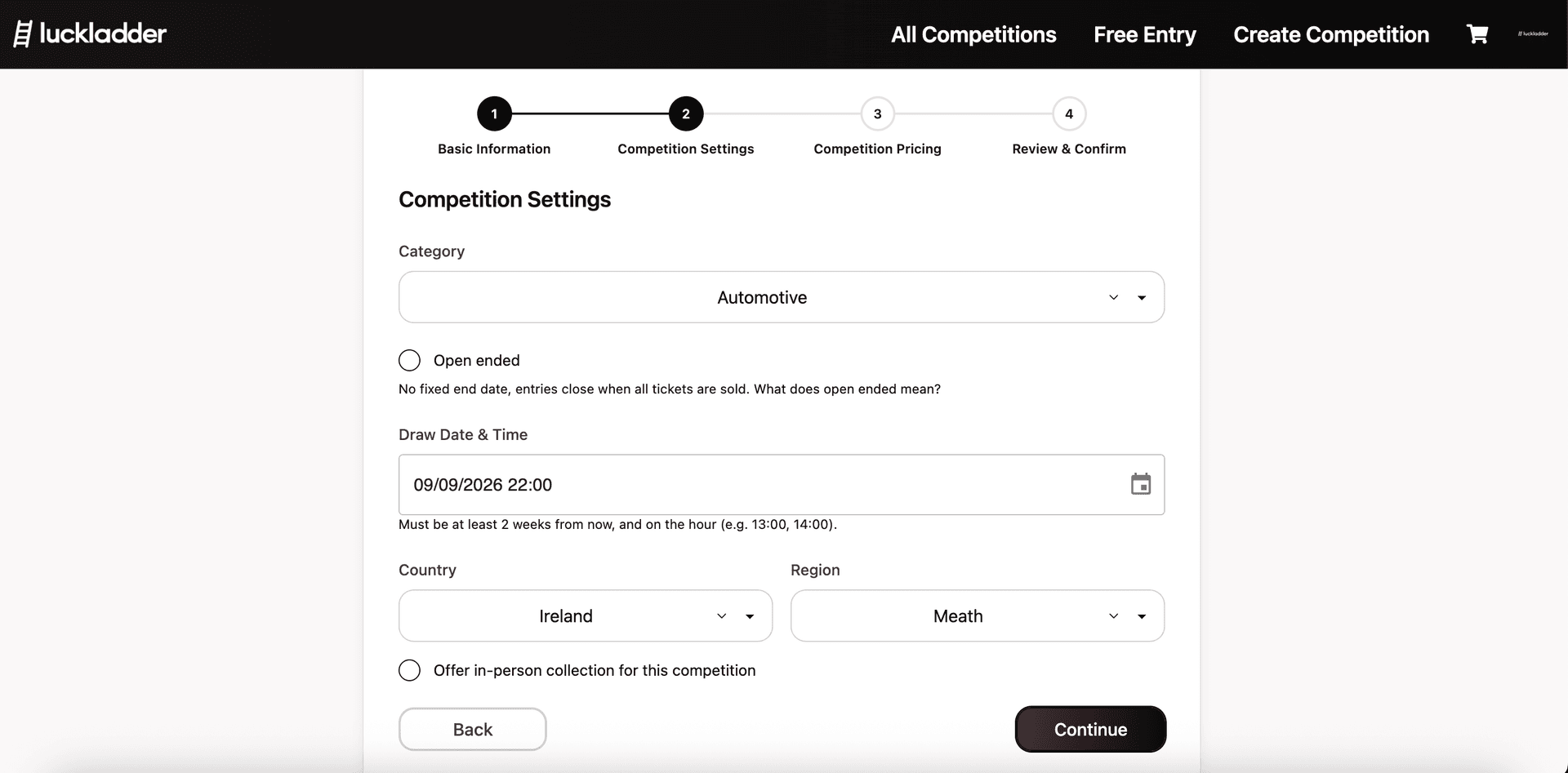
4. Set category, draw date, and location
Competition Settings covers category, draw style, location, and whether you offer in-person collection. Choose how entries close:
- Timed: set a draw date and time. Must be at least two weeks away and on the hour. Entries close at that time (or earlier if every ticket sells).
- Open ended: no fixed end date. Entries stay open until all tickets are sold, then the draw runs. Reserve is not available on open-ended competitions.
5. Set payout, default tickets, and reserve
Tickets are fixed at 50p. Your job is to set the maximum payout if every ticket sells, and the default amount shown on the competition page. You can also set a reserve, which is a minimum number of tickets that must sell in order for the competition to go ahead. Please note that open ended competitions do not support reserves.
Tip: set max payout higher than the prize's market value so you still have a buffer if sales fall short of a sell-out.
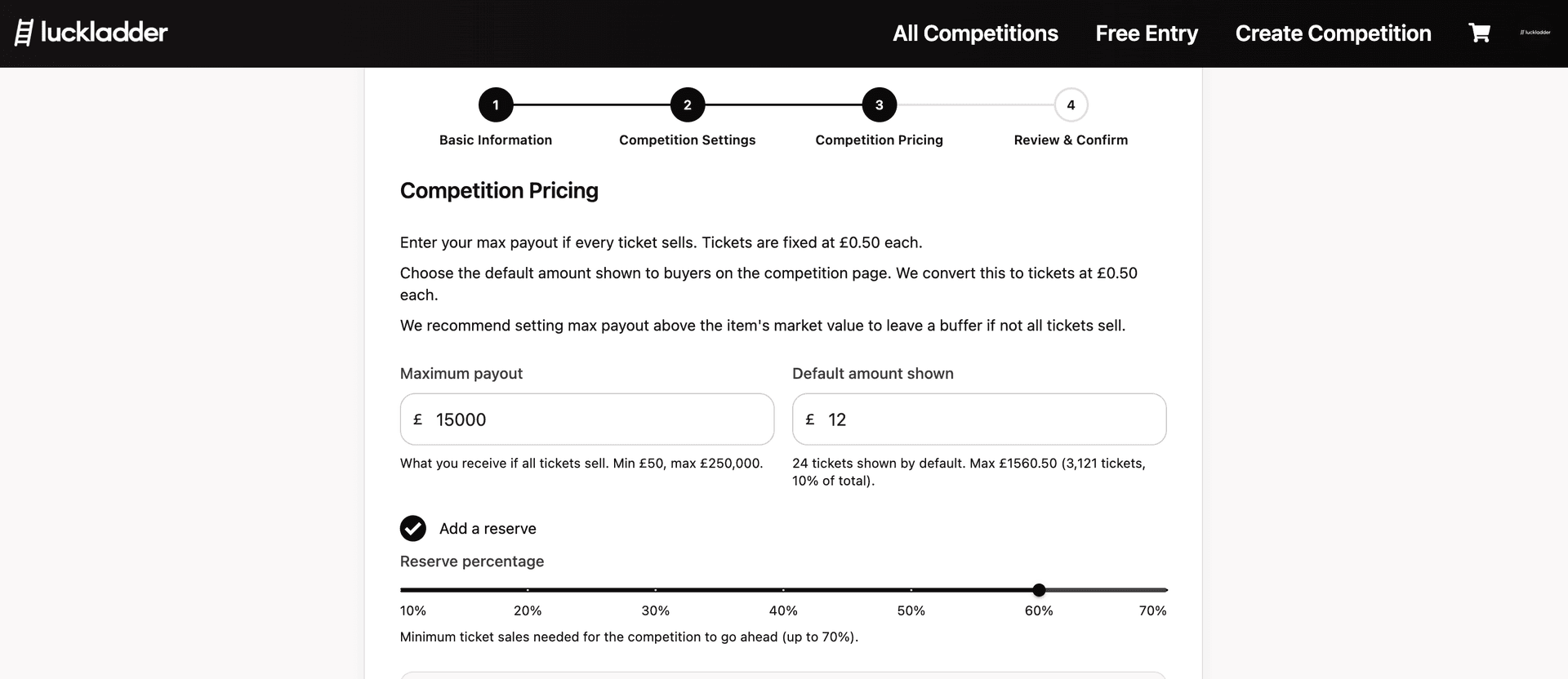
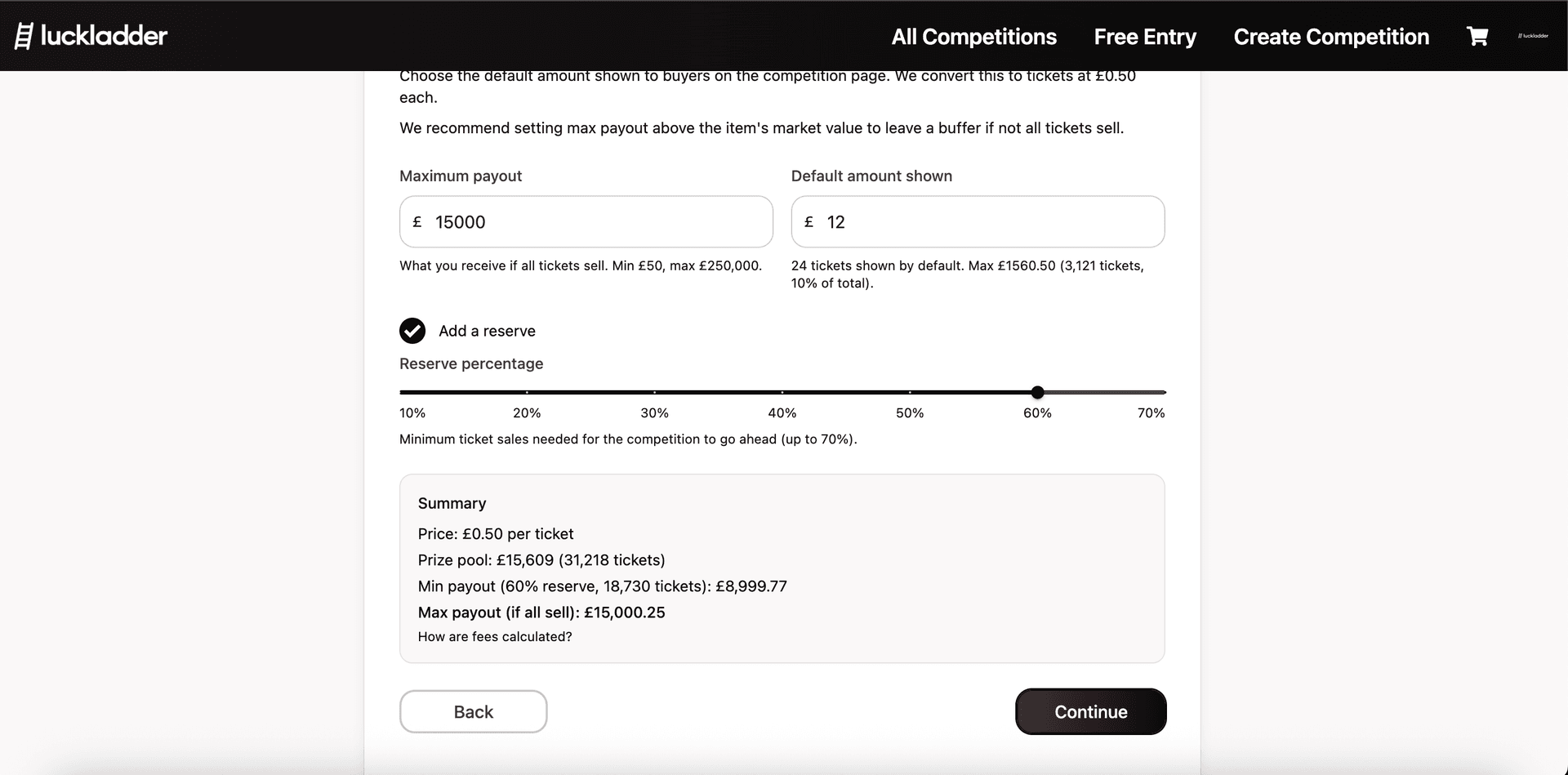
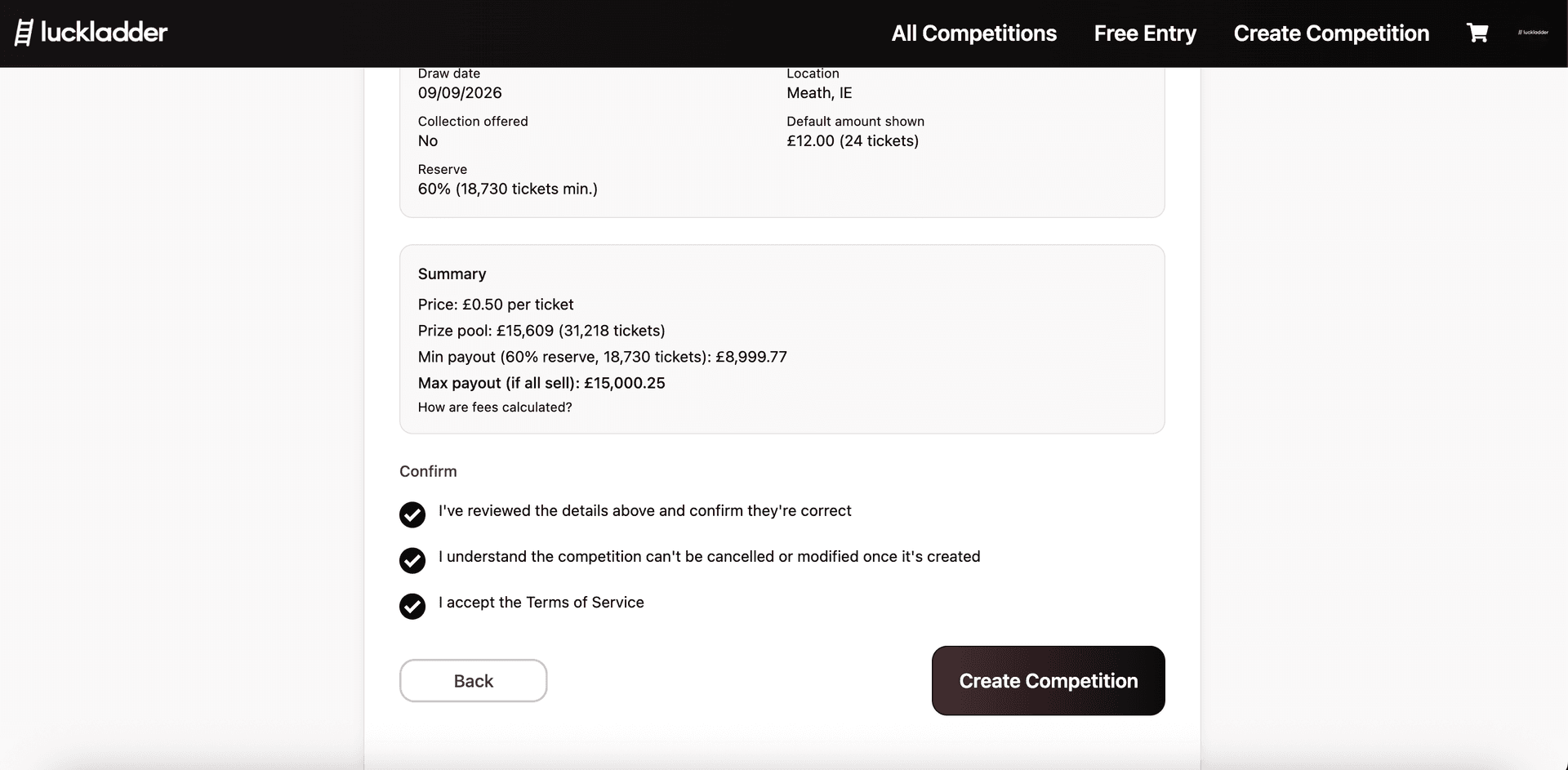
The summary underneath shows prize pool size, minimum payout at your reserve, and max payout if everything sells.
6. Review everything
You then review the full competition details: title, category, description, photos, draw date, location, pricing, and reserve. Read it carefully before you continue. You can't change these details once the competition is live, so make sure they are correct.
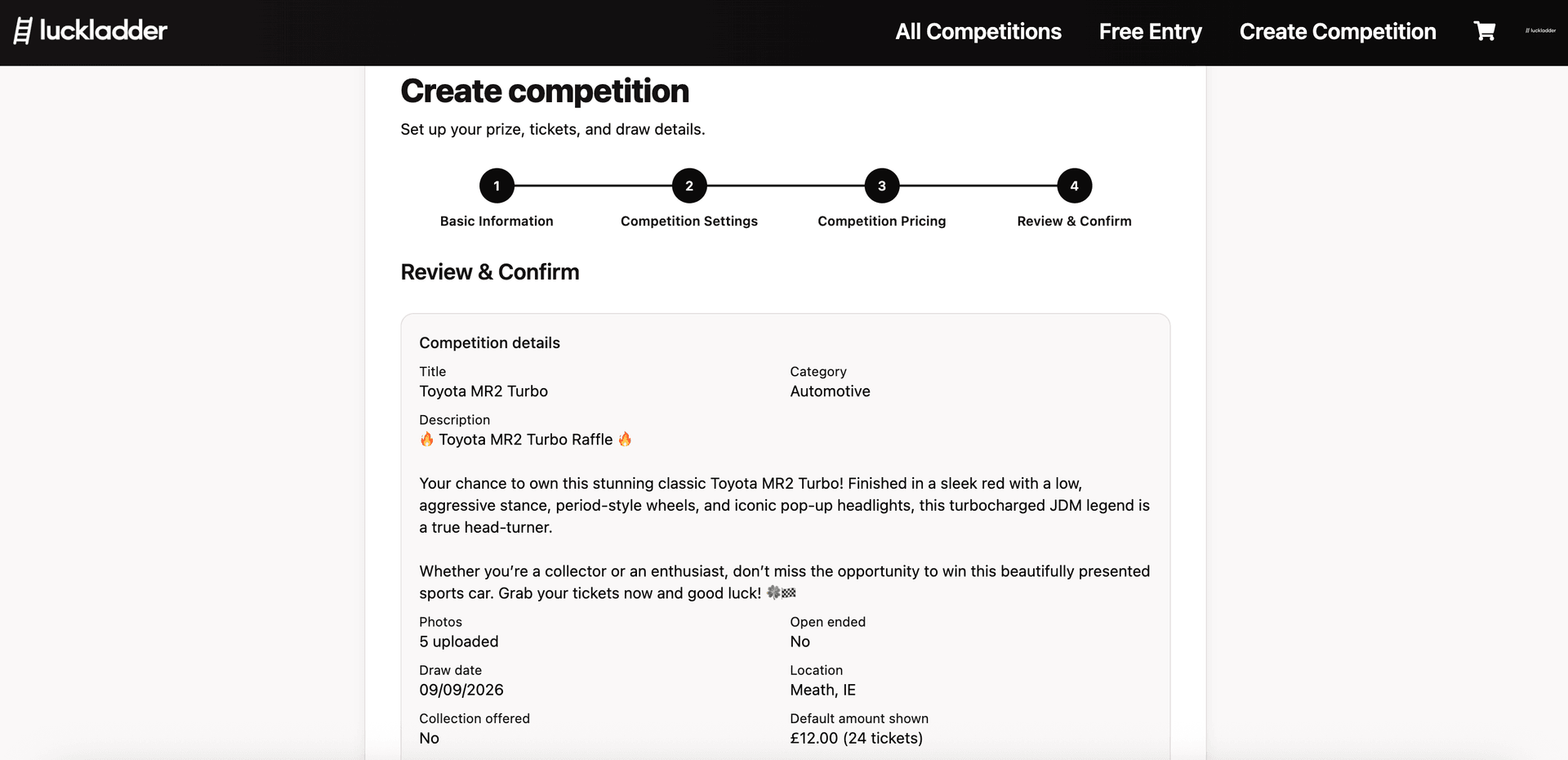
7. Confirm and go live
Tick all three confirmations, then hit Create Competition to publish your draw:
- I've reviewed the details above and confirm they're correct
- I understand the competition can't be cancelled or modified once it's created
- I accept the Terms of Service
8. Your competition is live
And you're done! Your competition is live and ready to sell tickets. Entrants can start buying tickets straight away. You can share the competition link with your audience, email list, and socials to get more entrants.
What happens after you go live
- Entrants buy tickets.
- You promote your draw on social media or however you please.
- When the draw date arrives, or tickets sell out, the winner is picked by our automated system.
- You and the winner get notified. Arrange handover, the then the winner confirms receipt of the prize on the site.
- Once the handover is confirmed, you can request your payout directly into your bank account.
Ready to host?
Open host a competition and list your prize, or browse live competitions to see how finished listings look to entrants. For the wider business case; legality, fees, and who hosting works for, please see how to host a competition for your business.
Join the waitlist
luckladder is not live yet. Join the waitlist and we will let you know when you can start hosting and entering competitions.